
In a previous article, we covered how to set up your LinkedIn headline in the profile intro. If you paid close attention, you probably noticed there was a link option there, a call to action (CTA).
In this article, we will walk through all the different ways you can add and edit call-to-action links on your LinkedIn profile. These CTAs help you redirect your audience to a website, portfolio, booking page, or any destination you want.
Also Read: How to Setup & Optimize Your LinkedIn Profile for Client Hunting (Complete Guide)
Contents
Important Update: LinkedIn Removed the Intro CTA for Free Users
Before we get into the good stuff, there is one important thing you need to know.
LinkedIn recently made a small but significant change. The CTA link that used to appear directly in the profile intro section has been removed for free users. That option is now exclusively available to LinkedIn Premium members.
That is the bad news. But here is the good news: there are still multiple other ways to add call-to-action links to your LinkedIn profile completely for free. Let us go through all of them one by one.
4 Ways to Add Call to Action on Your LinkedIn Profile
1. Contact Info Section (Add Your Website Links)
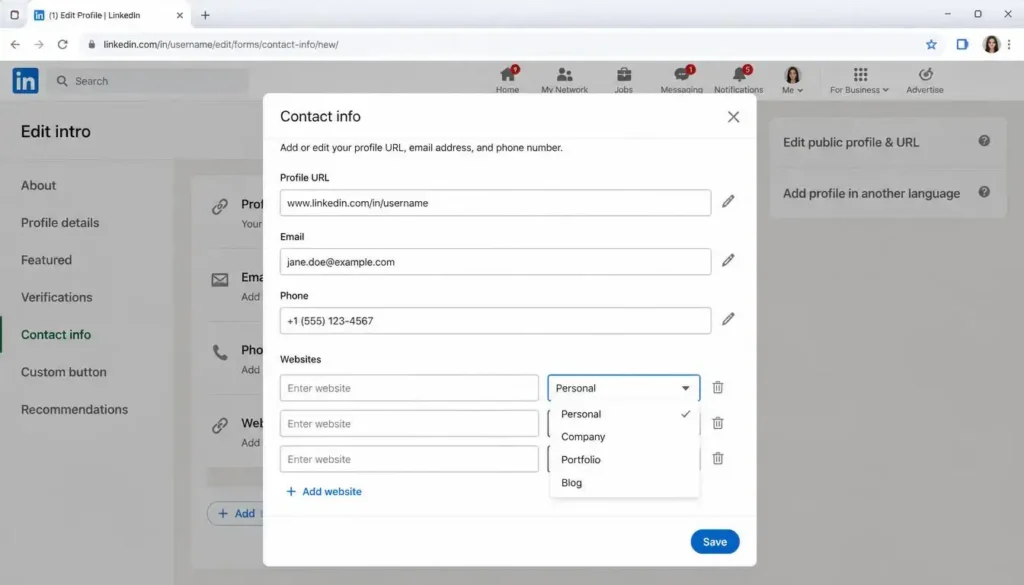
This is one of the most underused but powerful places to add your links.
Here is how to do it:
- Go to your LinkedIn profile and click the pencil (edit) icon.
- Scroll down and click on Contact Info.
- Inside Contact Info, you will see your Profile URL, email address, and options to add your phone number, address, and birthday.
- The most important field here is Websites. This is where you can add any URL you want, your YouTube channel, blog, portfolio, or business website.
- After adding the URL, you can also select the type of website it is: Personal, Company, Blog, RSS Feed, Portfolio, or Other.
- You can add two to three websites in this section. So if you have a personal site and a company site, you can add both.
- Once done, save your changes.
Whenever someone visits your profile and clicks on Contact Info, they will see all the links and details you have added here.
Note: The Instant Messaging section inside Contact Info (Skype, ICQ, Google Hangouts, QQ, WeChat) is largely outdated. Skype was recently shut down, and most of these platforms are no longer widely used. You can skip this section entirely.
Also Read: How to Get Clients from LinkedIn in 2026 | LinkedIn Marketing Strategy for Freelancers
2. Message Button in Profile Intro
The second CTA option is a Message button that appears directly on your profile. Even people who are not in your connections can message you directly using this button.
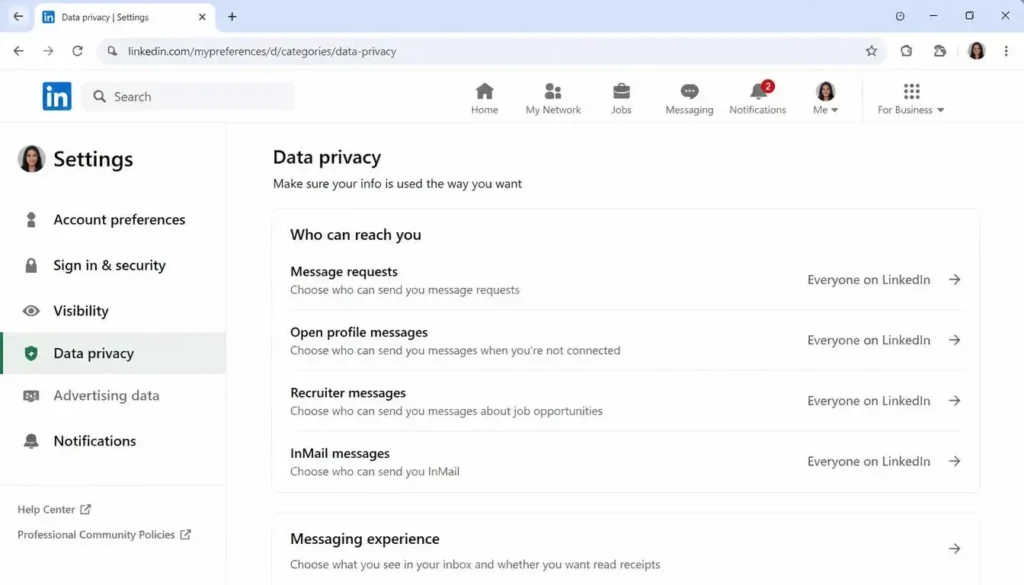
To enable this, follow these steps:
- Click on your Profile icon and go to Settings & Privacy.
- Inside Settings & Privacy, navigate to Data Privacy.
- Scroll down to the “Who can reach you” section and click on Messages.
- Here you will find the Message Request option. If it is turned off, enable it.
- You will also see options for:
- InMail Messages: control whether LinkedIn Premium users can send you InMails.
- Open Profile Messages: allow anyone to message you directly.
- Recruiter Messages: allow recruiters who are hiring to contact you.
Once you enable Message Requests, a Message button will appear on your LinkedIn profile. Anyone visiting your profile can use it to reach out to you directly.
3. Featured Section (Add Links with Thumbnails)
The Featured section is one of the best places to showcase your CTAs with a visual thumbnail image, making it much more eye-catching than a plain link.
Here is how to add a CTA link in the Featured section:
- Go to your profile and click on Edit Profile Section.
- Under the Recommended section, find Featured and click Edit Featured Section.
- Click the plus (+) icon to add a new item.
- From the options that appear, click Add a Link (not Add Article, Add Post, or Add Media).
- Paste the link you want to promote, your portfolio, a consultation booking page, or any other URL.
- Click Edit on the link you just added.
- Give it a Title: for example, “1-on-1 Consultation” or “My Portfolio.”
- Write a short description explaining what the link is about.
- You can also upload a custom thumbnail image for this link to make it look professional and branded.
Once saved, this link will appear in your Featured section, visible to everyone who visits your profile.
4. Services Section (Get Messages Through Your Services)
If you offer any kind of freelance or professional services, the Services section acts as another powerful call to action, because visitors can directly message you from there.
Here is how to set it up:
- Go to your profile and click Edit Profile Section.
- Under the Core section, find Services and click Edit.
- Click Continue to begin setting up your services.
- Add your relevant services: for example, Graphic Design, Logo Design, Content Writing, etc. You can add up to 8 services.
- Click Done after selecting your services.
- Write a proper description (up to 500 characters) explaining what services you offer and how you deliver them.
- Set your work location; you can choose remote, on-site, or both.
- For pricing, you have two options:
- Set an hourly rate if you have fixed pricing.
- Select Contact for Pricing if you prefer clients to reach out before knowing your rates.
- Once everything is filled in, click Publish.
After publishing, anyone who visits your profile and views your Services section will be able to message you directly from there. This is a strong CTA, especially for freelancers and consultants.
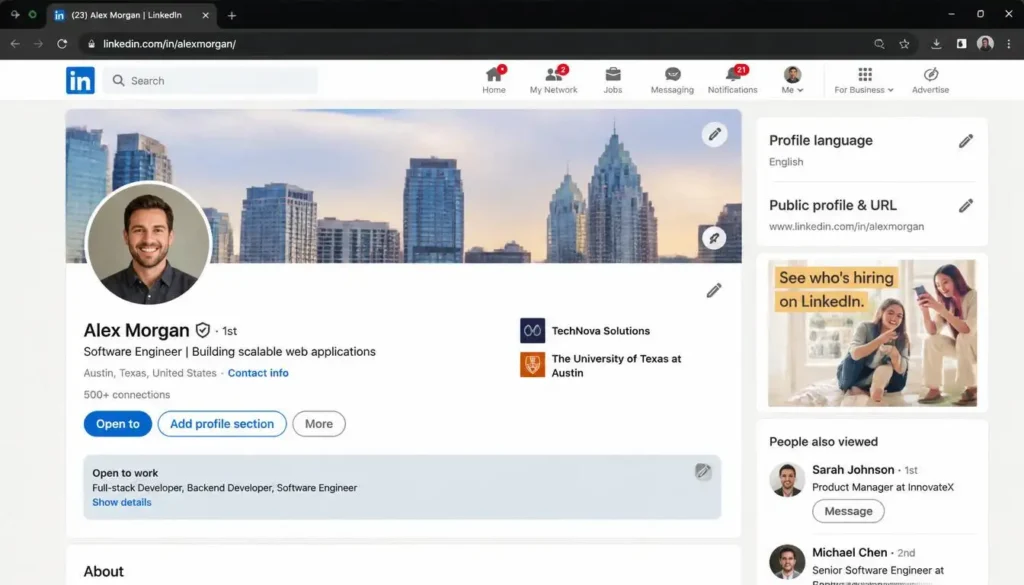
Summary: The 4 LinkedIn CTAs for Free Users
| CTA Option | What It Does |
|---|---|
| Contact Info | Add up to 3 website links (blog, portfolio, company site) |
| Message Button | Let anyone message you directly from your profile |
| Featured Section | Showcase links with a title, description, and custom image |
| Services Section | Let visitors message you about your services directly |
FAQs
Q: Can I add a call to action link in the LinkedIn intro for free?
No. LinkedIn recently removed this option for free users. The intro CTA link is now only available to LinkedIn Premium subscribers.
Q: Does the Featured section CTA work for free LinkedIn accounts?
Yes. Adding links to the Featured section is available to all LinkedIn users, including free accounts.
Q: Can someone message me on LinkedIn if they are not in my connections?
Yes, if you enable Message Requests in your Settings & Privacy, anyone can send you a message even if they are not connected with you.
Q: Can I show my pricing in the Services section?
Yes. You can either set an hourly rate or choose “Contact for Pricing” if you prefer to discuss rates directly with potential clients.
Q: How many services can I add in the Services section?
You can add up to 8 services in your LinkedIn Services section.
Conclusion
LinkedIn offers plenty of room for free users to make their profile work for them. Whether your goal is to get clients, grow your network, or drive traffic to your website, these four CTA options are a great starting point. As this LinkedIn series continues, more advanced strategies will be covered to help you build a profile that truly converts.
Disclaimer: LinkedIn’s features and interface are updated frequently. Some options or steps mentioned in this article may have changed since this was written. Always refer to LinkedIn’s official Help Center for the most up-to-date information.