
Is your LinkedIn profile permanently banned or restricted? Are you desperately looking for a solution to recover it?
If yes, you are in the right place. In this article, you will learn practically how to recover a permanently banned or permanently restricted LinkedIn profile. These are the exact same steps and strategy that worked to recover a personal LinkedIn profile even after LinkedIn sent an email clearly stating that the account would not be recoverable.
Despite that, the profile was recovered within just a few hours using the two methods shared below. Following these steps gives you a strong chance of recovery, as this approach has worked in real cases.
You can do all of these steps from a laptop or from a phone.
Also Read: How to Setup & Optimize Your LinkedIn Profile for Client Hunting (Complete Guide)

Contents
Important Note Before You Start
Before doing anything else, keep this critical point in mind.
You must do all of these steps in a different browser. Not the same browser where your LinkedIn account was previously logged in. If you are doing this on mobile, use a completely different phone. Not the phone where the LinkedIn app was installed. First, uninstall the LinkedIn app from your personal phone. Then, use a separate phone or a separate browser to complete these steps.
This is an important point and you must remember it throughout the process.
Method 1: Report a Compromised Account via LinkedIn Help Center
Step 1: Open a Different Browser
Open a different browser on your laptop or a different phone. Do not use the same browser or device on which your LinkedIn account was previously active.
Step 2: Search for LinkedIn Help Center
Go to Google and type “LinkedIn Help Center”. As soon as you type “LinkedIn Help”, the official LinkedIn Help Center website will appear in the suggestions. Click on it.
Step 3: Search for “Compromised Account”
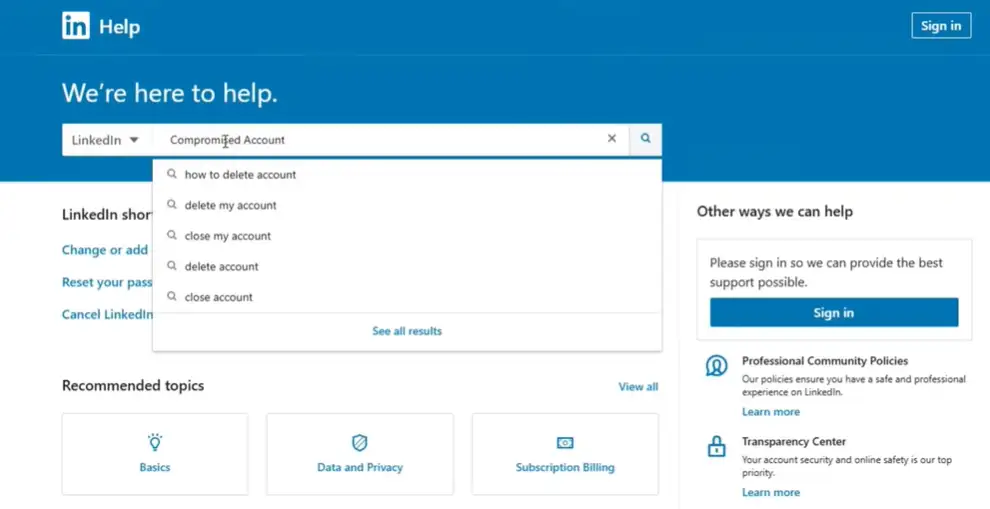
Once you are on the LinkedIn Help Center, type “compromised account” in the search bar. From the results, you will see the option “Report a compromised account“. Click on it.
Step 4: Click on the Report Link
After clicking, you will see an interface that shows options like changing your password, setting up two-factor authentication, and other security options. From here, click on the first link which says:
“Report unauthorized account access or changes”
Step 5: Fill in the Form
A form will appear on your screen. Fill it in as follows:
Contact Information:
- First Name: Enter the first name on your LinkedIn profile
- Last Name: Enter your last name
- Email: Enter the exact email address linked to your LinkedIn account
Report Details:
- “Whose account are you reporting?” Select My Account
- “Are you locked out of your account?” You can select Yes or No. This does not affect the result much.
- First Name and Last Name of the profile you are reporting: Fill in the name from your LinkedIn profile
Provide Account Verification Details:
The form asks you to provide at least one of the following but you should provide all three:
- Email address
- Phone number
- LinkedIn profile URL
Providing all three increases your chances significantly.
Step 6: Select Reason and Write Your Message
For the reason, select “Other”.
A message box will then appear asking “What can we help you with today?”
In this box, you need to write a proper appeal request. Make sure to include all three of your account details inside the message as well. You can also edit the message according to your own situation. You can write your own message or use the sample template provided below.
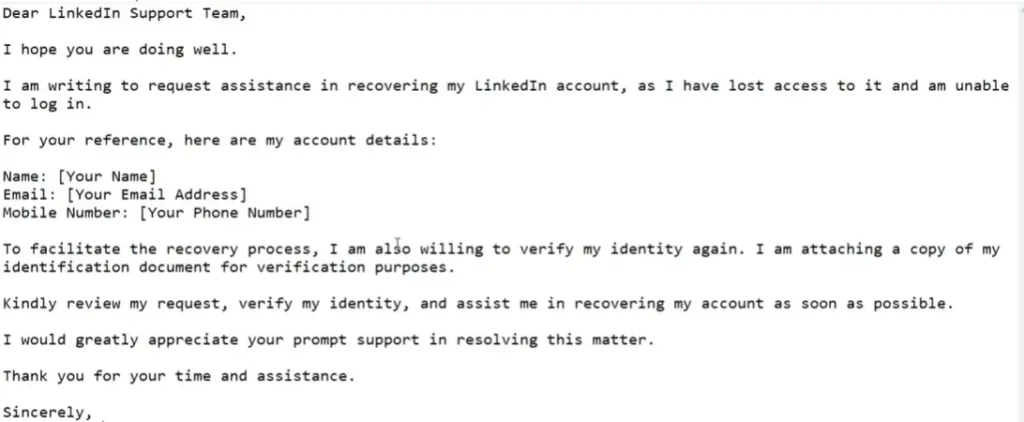
Step 7: Attach Your Identity Proof
In the attachment section:
- If you have an old screenshot of your LinkedIn profile, upload it here.
- If you do not have a profile screenshot, upload a government-issued identity document. This can be your National ID Card (front and back both sides), Passport, or Driving License.
Uploading your National ID Card from both sides works well for this step.
Step 8: Submit the Form
Once everything is filled in and your identity proof is attached, submit the form. That completes Method 1.
Also read: How to Get Clients from LinkedIn in 2026 | LinkedIn Marketing Strategy for Freelancers
Method 2: Submit a Request via LinkedIn’s Direct Appeal Form
Step 1: Open a Different Browser or Device
Just like Method 1, use a different browser on your laptop or a different phone. Do not use the device where your LinkedIn was previously logged in.
Step 2: Visit the LinkedIn Appeal Link
Go to this URL directly in your browser:
linkedin.com/help/linkedin/ask/ppq
Step 3: Fill in Your Contact Details
Enter your:
- First Name
- Last Name
- Email address
Step 4: Select “Regain Access to My Account”
When asked “How can we help you?”, select the option:
“Regain access to my account”
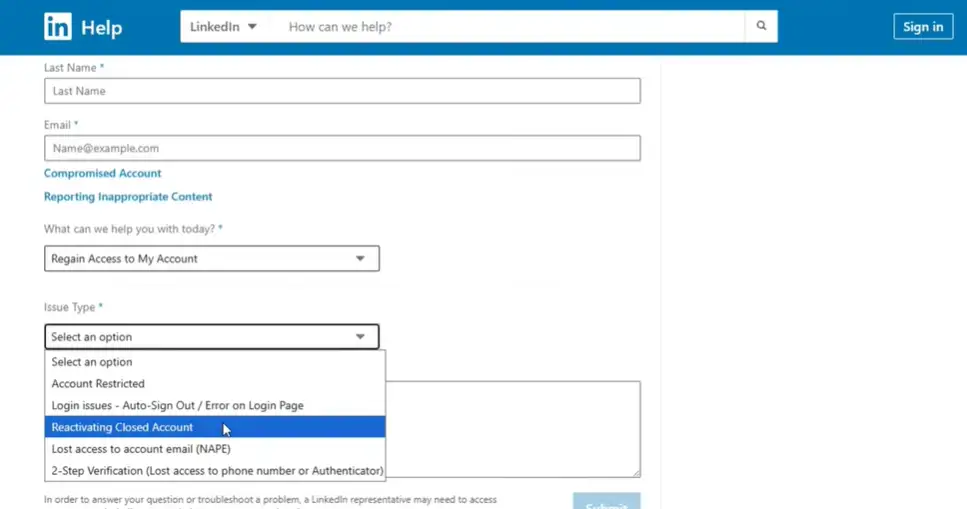
Step 5: Select the Issue Type
In the issue type field, type:
“Reactivating closed account”
This tells LinkedIn that your account has been permanently closed and you want it reactivated.
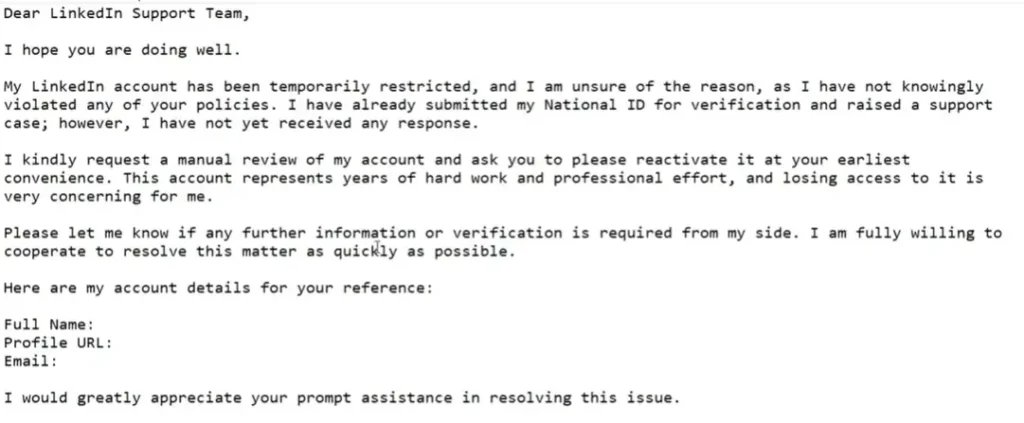
Step 6: Write Your Request Message
This is the most important part. The quality of your request directly affects the response you get from LinkedIn.
In the request field, write a formal and clear appeal message. Include the following inside your message:
- Your full name
- Your LinkedIn profile URL
- Your email address
A template for this message is available in the image. You can read and edit it with your own details before submitting.
Step 7: Complete Verification and Submit
Check the “I am not a robot” box and then click Submit.
What Happens After Submission?
After submitting through either method, LinkedIn will respond to you via email. In that email, you will be required to go through verification again.
Both methods require you to complete face verification and identity verification once again before your account is fully restored.
Follow the verification steps as instructed in LinkedIn’s email and your profile should be recovered.
FAQs
Q1: Can a permanently banned LinkedIn account really be recovered?
Yes. Even if LinkedIn sends you an email saying your account will remain restricted and cannot be recovered, it is still possible to recover it using these two methods if you follow the steps correctly.
Q2: What identity documents can I submit for LinkedIn Account Recovery?
You can submit your National ID Card (front and back), Passport, or Driving License. Any one of these works.
Q3: Do I need to provide all three account details (email, phone, URL)?
The form says you only need to provide at least one. However, providing all three (email, phone number, and LinkedIn profile URL) increases your chances of successful recovery.
Conclusion
Getting your LinkedIn account permanently banned or restricted can be stressful, especially if you use it for professional networking or freelancing. But it is not the end.
By following these two methods step by step, through the LinkedIn Help Center’s compromised account form and the direct LinkedIn appeal form, you have a very high chance of getting your restricted profile back. The key is to use a different browser or device, provide all required details, write a strong appeal message, and submit valid identity proof.
Follow each step carefully, complete the identity verification after LinkedIn responds, and your profile should be restored.
Disclaimer: This article is based on a real personal experience of recovering a permanently restricted LinkedIn profile. Results may vary depending on individual circumstances and LinkedIn’s policies at the time of your request. This is not an official LinkedIn guide. Always make sure you submit your request only through LinkedIn’s official Help Center website.