If you are doing high-volume LinkedIn outreach, your biggest enemy is account bans and restrictions. LinkedIn does not want you using their platform to spam or disturb people at scale. They have strict policies, and the moment they detect unusual behavior, they restrict or ban your account.
The good news is that with the right setup, you can significantly reduce the chances of getting banned. And if your account does get banned, there is a way to recover it. This article covers everything you need to know, from creating authentic profiles to recovering banned accounts using a secret support link.
Contents
- Why LinkedIn Bans Accounts During Outreach
- Step 1: Create an Authentic Profile From Day One
- Step 2: Follow Connection Request Limits
- Step 3: Never Copy-Paste the Same Message
- Step 4: Activate a LinkedIn Premium Free Trial
- Step 5: Verify Your Profile Using Government ID
- Step 6: Use Only One Automation Tool at a Time
- Step 7: Use a Dedicated IP Address for Each Account
- How to Recover a Banned LinkedIn Account
- FAQs
- Conclusion
Why LinkedIn Bans Accounts During Outreach
LinkedIn is a machine. It runs on algorithms that are specifically designed to detect spam-like and bot-like behavior. When you are reaching out to hundreds of people using multiple accounts, LinkedIn picks up on these patterns and flags your accounts.
Some common reasons why LinkedIn restricts accounts include sending too many connection requests too fast, copy-pasting the same message to everyone, logging in from too many different IP addresses, and using multiple automation tools at the same time.
The solution is not to stop outreach; it is to do outreach the smart way.
Also Read: How to Setup & Optimize Your LinkedIn Profile for Client Hunting (Complete Guide)
Step 1: Create an Authentic Profile From Day One
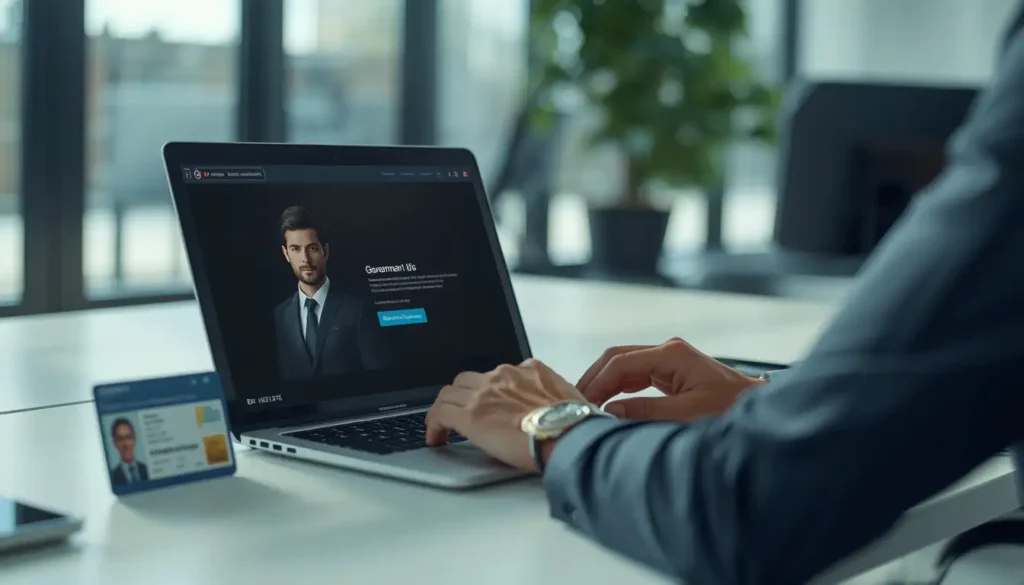
The first and most important thing is authenticity. When you create a new LinkedIn account, make sure the name on the account matches your government-issued ID, whether that is a CNIC card, Passport, PAN card, or any other official document.
Your profile picture should also be real and match your actual identity. LinkedIn cross-checks these things when reviewing accounts. A fake name or a stock photo is the fastest way to get permanently banned with no chance of recovery.
Once the profile is created, do not rush into sending connection requests. Start slow. Build a basic profile with your photo and name.
Post at least one piece of content that shows who you are and where you work. Do some light engagement, like comments. Let the account look real and active before you scale.
Step 2: Follow Connection Request Limits
When you are just starting with a new account, you can send around 15 connection requests per day.
Do not exceed this limit in the beginning. Gradually increase your outreach volume over time as the account ages and builds credibility.
Also, keep an eye on pending requests. If someone is not accepting your connection request, withdraw it.
LinkedIn has a limit on how many pending requests you can have at once. Withdrawing unaccepted requests keeps your account healthy and prevents it from looking like spam behavior.
Step 3: Never Copy-Paste the Same Message
One of the biggest mistakes people make is sending the exact same message to everyone. LinkedIn’s system can detect this pattern very quickly and will flag your account for spam.
Instead, create multiple variants of your outreach message. Rotate between them so that each message looks slightly different.
You can also do A/B testing with two or three different messages to see which one gets the best response rate.
Another option is to use Spintax. Spintax automatically rotate different parts of your message so that every recipient receives a slightly unique version.
This is one of the most effective ways to avoid spam detection when doing high-volume DM outreach.
Step 4: Activate a LinkedIn Premium Free Trial
Here is a tip that most people overlook. When you create a new LinkedIn account, activate a free trial of any LinkedIn paid service, Sales Navigator, Premium, or anything else available.
You do not have to keep paying for it, but activating the trial sends a signal to LinkedIn that you are a paying customer.
LinkedIn is less likely to ban accounts that are enrolled in their paid services because those accounts represent potential revenue. The probability of getting banned drops noticeably once a free trial is active on an account.
Step 5: Verify Your Profile Using Government ID
LinkedIn has a profile verification feature that lets you verify your identity using a government-issued ID. Use it. Verified accounts are far less likely to get banned compared to unverified ones.
If you manage multiple LinkedIn accounts as part of a team or agency outreach setup, try to get as many of them verified as possible.
A verified account combined with a real photo, a real name, one or two posts, and an active LinkedIn premium trial is a very strong combination for avoiding bans.
Step 6: Use Only One Automation Tool at a Time
There are many LinkedIn automation tools available in the market. Closely, Heyreach, Airscale, Infox, and others. These tools help you scale your outreach efficiently. But using multiple tools on the same account at the same time is a guaranteed way to get banned.
LinkedIn’s algorithm detects when multiple automation systems are accessing the same account simultaneously. Stick to one tool at a time. Use it within the limits it recommends. More tools does not mean more results, it means more risk.
Step 7: Use a Dedicated IP Address for Each Account
Using a dedicated IP address for each account is an important practice for reducing security flags during large-scale outreach.
When you log into your LinkedIn accounts from multiple devices, your laptop, your team’s laptops, your phone, and your outreach software, LinkedIn sees multiple different IP addresses logging into the same account. This triggers suspicion.
The solution is to buy a dedicated IP address for each account. A good IP address costs around $1–$5 per month. Once you have a dedicated IP, assign it to your account and always log in through that same IP, no matter what device or software you use.
Most outreach tools have an option to add a proxy or custom IP address. Use your own IP there as well. This way, LinkedIn sees a single consistent IP for each account, which looks completely normal and human.
You can use tools like hidemyacc or GoLogin to manage multiple LinkedIn accounts and assign dedicated IPs to each one. These tools are widely available and affordable.
How to Recover a Banned LinkedIn Account
Even if you follow all the above steps, account bans can still happen when you are doing high-volume outreach. You can recover a restricted LinkedIn account by following these steps.
Step 1: Click “Verify Your Identity”
When LinkedIn restricts your account, it usually shows a prompt to verify your identity. Click that button and complete the verification process. In most cases, this alone will restore access to your account.
Step 2: Use LinkedIn’s Official Support Appeal Form
If clicking “Verify Your Identity” does not work, or if your account is not responding to the verification attempt, go to LinkedIn’s official support and appeal form. Explain your situation in detail. Include your full name, email address, and the LinkedIn profile URL.
Write a clear message explaining that your account has been restricted, that you have not done anything against LinkedIn’s policies, and that you would like the account to be reactivated.
This is a human interaction process. A LinkedIn support team member reviews your appeal and, in most cases, restores the account.
Many users have reported successfully recovering restricted accounts after submitting an appeal through LinkedIn’s official support process, provided the account was authentic and complied with LinkedIn’s verification requirements.
Why Some Accounts Cannot Be Recovered
If your account has a fake name, a fake profile picture, or is clearly set up as a dummy account, LinkedIn will not restore it.
The recovery process works specifically because authentic accounts with real names, real photos, and real activity have a strong case for reinstatement.
Accounts with Sales Navigator active, verified government ID, and a real posting history are treated as genuine users by LinkedIn’s support team, which is why recovery rates are so high for properly set up accounts.
Related: How to Recover a Permanently Banned LinkedIn Account (2 Proven Methods)
FAQs
Q: How many LinkedIn connection requests can I send per day without getting banned?
When starting a new account, stick to around 15 connection requests per day. Increase this number gradually as the account gets older and more established.
Q: Is it safe to use LinkedIn automation tools?
Using automation tools carries some risk, but it can be managed. Use only one tool at a time and always stay within the tool’s recommended limits. Never run multiple tools on the same account simultaneously.
Q: Does having LinkedIn Sales Navigator reduce the risk of getting banned?
Yes. Activating a Sales Navigator free trial or any LinkedIn premium subscription signals to LinkedIn that you are a paying customer. This reduces the probability of your account getting banned.
Q: Should I post content on outreach-only LinkedIn accounts?
Yes, at least one post. Even a single post showing your professional role or company affiliation adds authenticity to the account and makes it look less like a bot profile.
Q: How many LinkedIn accounts can I safely manage for outreach?
There is no fixed limit, but the more accounts you manage, the more important it becomes to use dedicated IPs, proper multi-account management tools, and authentic profile setups for each account.
Conclusion
High-volume LinkedIn outreach is one of the most powerful ways to generate leads and build professional connections, but it comes with the constant risk of account bans. The key to staying safe is authenticity, real names, real photos, real activity, verified profiles, and dedicated IP addresses.
Use only one automation tool at a time, rotate your message variants, withdraw unaccepted connection requests, and always activate a LinkedIn free trial on new accounts. And if your account does get banned, the official LinkedIn support appeal form is your best tool for recovery.
Follow these steps consistently and your outreach operation will remain stable and productive.
Disclaimer: This article is for educational and informational purposes only. The strategies and methods discussed here are based on personal experience with LinkedIn outreach. LinkedIn’s policies may change at any time, and certain automation or multi-account practices may violate their Terms of Service. Always review LinkedIn’s latest policies before implementing any outreach strategy. The author is not responsible for any account bans, restrictions, or penalties resulting from the use of automation tools or multi-account outreach practices.